 Scrollify
Most Scrollify problems trace back to a handful of causes: script order, page structure or competing scroll handlers. This guide lists the common symptoms with their fixes.
Nothing snaps at all
Open the browser console first. An error such as $.scrollify is not a function means the plugin failed to load.
- Confirm jQuery loads before the plugin.
- Check for a second copy of jQuery further down the page.
- Make sure you are not using the slim build of jQuery.
- Verify that the
sectionselector matches real elements:$(".panel").lengthshould be greater than zero.
You cannot reach the bottom of a section
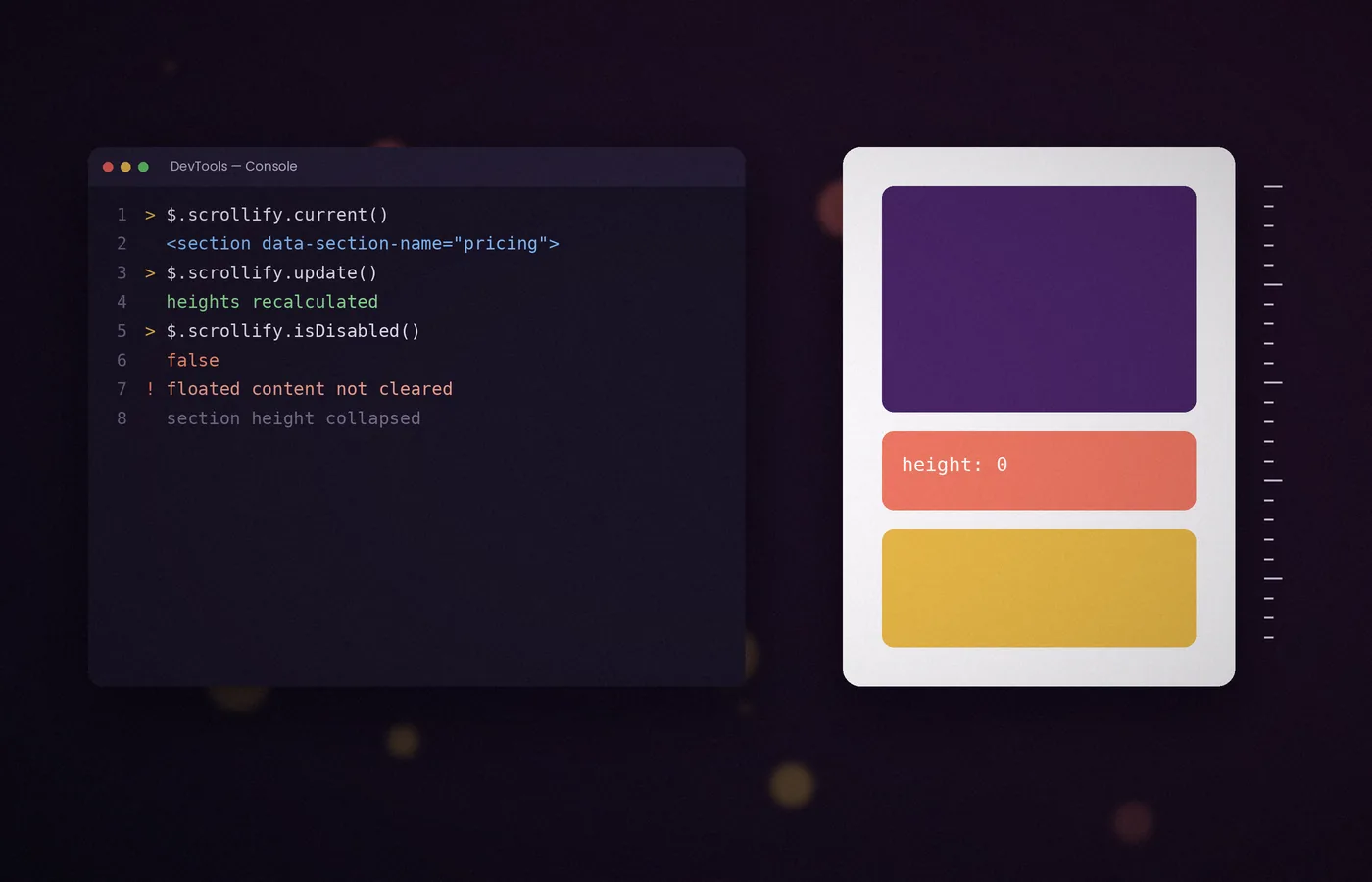
This usually means the section's height was calculated incorrectly. Floated elements that are not cleared often cause it.
Add a modern clearfix or switch the layout to flexbox or grid:
.panel::after { content: ""; display: table; clear: both; }If content loads after initialisation, such as images without dimensions or web fonts, call $.scrollify.update() once it has finished loading.
Section heights increase on resize
This happens when the browser renders the page in quirks mode, almost always because of a missing or incorrect doctype. Ensure the very first line of the document is:
<!DOCTYPE html>Scrolling feels doubled or jerky
Another script may also be controlling scroll. Smooth-scroll libraries, parallax plugins and CSS scroll-behavior: smooth on the root element can all compete with Scrollify.
Remove the other handler, or restrict it to pages that do not use Scrollify. Also check that you have not combined Scrollify with CSS scroll-snap-type.
Trackpads skip two sections
Trackpads generate many small wheel events with momentum. Scrollify filters these, but very short scrollSpeed values can let a second movement slip through. Values around 900 to 1100 milliseconds are the most dependable.
Links to sections do not work
- The hash must match the data attribute exactly, including case.
- Remove any element
idwith the same value, which makes the browser jump on its own. - When using
move, include the hash:"#pricing", not"pricing".
Embedded maps or carousels stop working
Scrollify intercepts wheel and touch events across the page. List interactive elements in standardScrollElements so their gestures pass through untouched.
The page jumps on mobile
Changing address bar height alters the viewport. Use 100dvh in CSS with setHeights: false, or debounce a call to update on resize. The mobile guide covers this in more depth.
A useful diagnostic routine
console.log($.scrollify.currentIndex());
console.log($.scrollify.current().attr("data-section-name"));
console.log($.scrollify.isDisabled());
These three lines reveal which section the plugin believes is active and whether snapping is switched on, which narrows most problems quickly.
Reporting a bug
If the issue persists in a minimal test page, it may be a genuine bug. Search the project's open issues on GitHub first, then open a report with your browser version, device and a short code sample.
Capture the failure before changing code
Write down one observable symptom and the shortest interaction that produces it. Nothing snaps is different from the last paragraph being unreachable, and both differ from a transition that feels slow. Record the page route, browser, input device, and viewport size. Keep the console and network log from the failing attempt if they contain useful errors. This small record prevents the investigation from drifting as you experiment. Change one relevant variable at a time and repeat the same interaction. A successful fix should remove the recorded failure under the same conditions, rather than merely make a different route through the page appear normal.
Check the first relevant error
A page can produce several errors after one early failure. Start with the first error in the dependency or initialisation chain, not whichever message looks most dramatic. If jQuery is missing, later plugin and control errors are consequences. If a server returns HTML at the plugin's script URL, the resulting syntax error belongs to delivery rather than Scrollify configuration. Inspect the response body, request path, status, and content type together. Reload with caching disabled when necessary to see the current files. Once the earliest fault is resolved, repeat the test before deciding that any remaining error shares the same cause.
Verify the actual jQuery instance
A plugin can load correctly and then appear to disappear if another jQuery file replaces the global reference. Search the rendered document and bundled dependencies for duplicate copies. Do not rely only on the template you are editing, because a theme, component, or tag manager may add another script. Inspect the object that your initialisation code uses and compare it with the one receiving the plugin. In a bundled project, review dependency resolution as well as global variables. Reinstalling Scrollify does not solve an instance mismatch. Establish one clear dependency arrangement and verify it in a minimal page before restoring the full application.
Inspect the selected elements
Print the number of matched panels and inspect each element in developer tools. An overly broad selector can include nested sections or a shared footer component, while an outdated class can match nothing. Check that document order matches the intended movement sequence. Then examine computed dimensions and the normal flow of the selected elements. Absolutely positioned children or uncleared floats can make a visually full panel report an unexpectedly small height. A plugin setting cannot infer the content area you intended if the actual document describes something different. Correct the structure and layout before compensating with arbitrary offsets or empty spacer elements.
Separate geometry failures from animation failures
If the final destination is wrong, investigate heights, offsets, section selection, and late content changes. If the final destination is correct but the journey stutters, investigate competing animations, expensive callbacks, rendering cost, and event handling. Slowing the transition can make a wrong landing look calmer while leaving the actual issue untouched. Conversely, repeatedly updating geometry will not remove a heavy visual filter that causes frames to drop. Observe both the endpoint and the movement itself. A short screen recording can help compare attempts, but pair it with the actual configuration so the visible symptom remains connected to a reproducible cause.
Investigate long sections without hiding content
When a reader cannot reach the bottom of a panel, inspect both the document's height and its overflow rules. A parent with hidden overflow can clip content even when the plugin's own overflow setting is enabled. Fixed-height inner containers, sticky elements, and absolute positioning may also affect reachability. Test with increased text size, since a panel that barely fits at the default size can fail immediately when lines wrap. Do not remove text or shrink typography merely to mask the fault. A correct fix preserves access to the actual content and works when the viewport is shorter than your development screen.
Review every owner of scroll position
The browser, CSS, Scrollify, a smooth-scroll library, and a route-restoration component may all attempt to change vertical position. Disable optional systems one at a time in a minimal reproduction. Keep one deliberate owner for animated document movement. Also inspect custom click handlers that call window scrolling methods while the plugin is transitioning. A conflict may occur only when following a menu link, which explains why wheel navigation alone appears fine. Once you identify the competing owner, integrate it deliberately or scope it to different pages. Avoid keeping two systems active and trying to hide their disagreement with longer durations.
Check lifecycle and duplicate setup
In a single-page application, a view can be mounted more than once without a full document reload. Confirm that Scrollify initialises only after the new panels exist and that the previous instance is cleaned up before the old view disappears. Remove application-owned listeners and timers as well as the plugin's behaviour. Repeated movement or callbacks after the second visit often indicates duplicated setup rather than faulty gesture detection. Test entering and leaving the view several times. A page that works only after refresh is useful evidence: it suggests that the difference between first load and remount deserves investigation.
Test the failing input specifically
A mouse wheel, a trackpad, touch input, and keyboard navigation can produce different symptoms. Reproduce the issue using the original input device before declaring it fixed. Trackpad momentum can generate a series of events after a gesture ends, while a nested widget may capture touch events independently. Inspect the region where the interaction starts, including its child elements. Do not assume that changing scrollSpeed alone fixes every skipped destination. Compare the minimal baseline with the full page and review any extra event handlers.
Refresh after the change that affects layout
A layout update is useful only when it measures the document in the relevant state. Calling update before an image loads or before an accordion expands records the old geometry again.
Retest using production-style routes
A homepage can conceal relative asset paths that fail on a nested guide route. Load the failing page directly from its clean folder URL using a local HTTP server, then inspect every script request.
Make the regression check smaller than the bug report
Once you identify the cause, preserve a concise check for it. If duplicate initialisation caused the problem, verify that repeated view mounts leave one handler set.
Frequently asked questions
What should I inspect first?
Start with the console's earliest relevant error, then verify script responses and selector matches. These checks distinguish a missing dependency from a layout or interaction problem. Capture a repeatable failure before changing settings so you can verify the eventual fix under the same conditions.
Will calling update repeatedly fix every issue?
No. It refreshes layout measurements; it does not load a missing script, remove a duplicate listener, or reconcile competing scrolling systems. Call it after a known geometry change, and investigate delivery or lifecycle faults through the evidence relevant to those problems.
Why does the page work after refresh but fail on return?
Compare first-load setup with the application's remount lifecycle. Stale listeners, delayed requests, and an instance attached to old elements are common things to inspect. Clean up application-owned resources and initialise only after the replacement panels exist.
What makes a useful bug report?
Provide a minimal page, the selected library versions, browser and device details, and exact reproduction steps. State the expected and observed results. Remove unrelated components until the failure is clear, then include the smallest example that still demonstrates it.
Conclusion
Begin with a reproducible symptom, then inspect dependency delivery, selected elements, geometry, and competing movement systems. Test the input and lifecycle that actually failed. A focused diagnosis leads to a smaller fix and a useful regression check, while keeping the page's real content accessible throughout the investigation.