 Scrollify
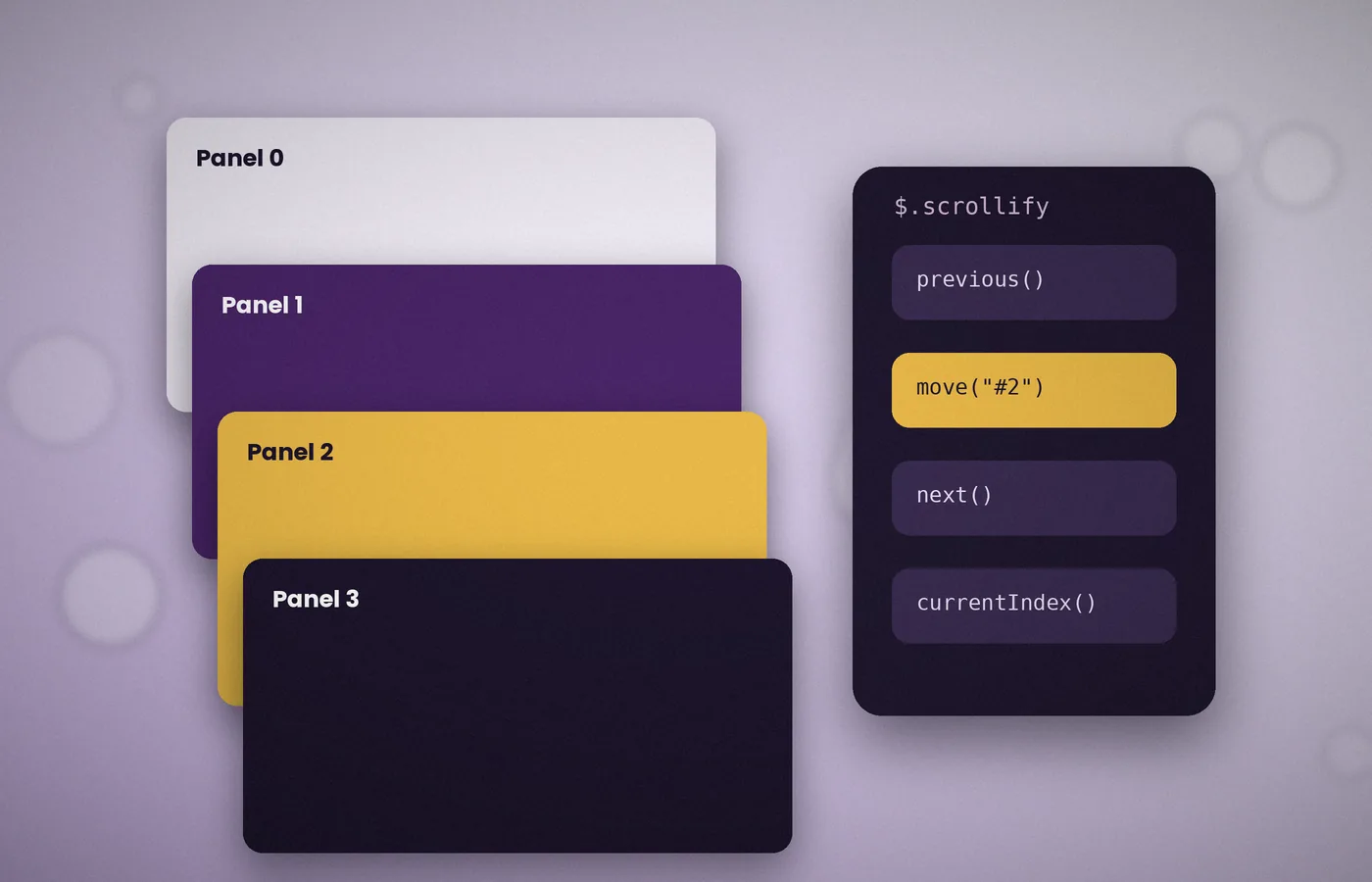
Options define how Scrollify behaves; methods let you control it while the page is running. They are all called on the $.scrollify object.
This reference groups them by purpose, with a short example for each.
Moving between sections
move
Animates to a section by index or by name. Names must include the hash.
$.scrollify.move(2);
$.scrollify.move("#contact");
next and previous
Move one section forward or back. These are ideal for arrow buttons placed on each panel.
$(".arrow-down").on("click", function () {
  $.scrollify.next();
});
Instant variants
instantMove, instantNext and instantPrevious jump without animation. They are useful when restoring a position or when a visitor has asked for reduced motion.
if (window.matchMedia("(prefers-reduced-motion: reduce)").matches) {
  $.scrollify.instantMove("#features");
}
Reading the current state
current
Returns the current section as a jQuery object, so you can read its attributes or content.
var name = $.scrollify.current().data("section-name");currentIndex
Returns the zero-based index of the current section. It pairs well with page counters such as "3 of 6".
Recalculating the layout
update
Recalculates section heights and positions. Call it after adding content dynamically, loading web fonts or expanding an accordion inside a panel.
$(".panel").last().after(newPanel);
$.scrollify.update();
Switching snapping on and off
disable and enable
disable returns the page to normal scrolling without removing the plugin. enable resumes snapping.
function check() {
  if (window.innerWidth < 768) {
    $.scrollify.disable();
  } else {
    $.scrollify.enable();
  }
}
$(window).on("resize", check);
check();
isDisabled
Returns true when snapping is currently off. Use it to avoid calling disable repeatedly.
Removing the plugin
destroy
Removes all Scrollify events and the heights it applied. Call it before leaving a view in a single-page application, or before re-initialising with a different section selector.
$.scrollify.destroy();Changing settings at runtime
setOptions
Updates any initialisation option without starting again.
$.scrollify.setOptions({ scrollSpeed: 700, offset: -60 });Building a dot navigation
Several methods combine neatly into a side navigation of dots:
$(".dots button").on("click", function () {
  $.scrollify.move($(this).index());
});
$.scrollify({
  section: ".panel",
  after: function (i) {
    $(".dots button").removeClass("on").eq(i).addClass("on");
  }
});
Give each dot an aria-label, such as "Go to section 3", so that screen reader users understand its purpose.
Use names for destinations and indexes for sequence
A section name expresses intent: contact means the contact destination regardless of where it appears in the page. An index expresses position and is useful for generated controls or a deliberate next-step sequence. Prefer names in hand-written menu actions when editors may reorder panels. Prefer indexes when iterating over the exact set of selected elements, while remembering that the first index is zero. Keep a single source of truth for any mapping between labels and destinations. A duplicated array of names can drift from the markup and send a visitor to the wrong panel without producing an obvious JavaScript error.
Build controls with useful native behaviour
A destination link should contain a meaningful address, while a button should perform an action. If you intercept a link to call move, prevent its normal jump only when your handler can actually complete the enhanced navigation. Preserve useful behaviour when the plugin is unavailable or disabled. Do not intercept modified clicks indiscriminately, because visitors may be opening a destination in another tab. A next button should have an understandable text label and a visible focus indicator. These details make custom controls usable before animation is considered and keep the interface recognisable to keyboard and assistive-technology users.
Choose animated and instant movement intentionally
Animated movement can help someone understand how adjacent panels relate, while instant movement is useful when restoring state or respecting a preference for reduced motion. The choice should come from the interaction, not from whichever method was copied first. A direct jump across several panels may be clearer than making a visitor watch every intervening destination. If the interface offers both wheel movement and a menu, test each route independently. Instant methods still affect the plugin's current state; they are not a substitute for changing the document scroll position outside its control. Keep the plugin informed about navigation you initiate.
Account for first and last destinations
A previous control on the first panel and a next control on the last panel need defined behaviour. Do not imply that navigation wraps unless your own design implements and explains wrapping. Disable unavailable controls or omit them where that makes the layout clearer. Check whether a footer or another interstitial block participates in the plugin's destination list before assuming that the final visual panel has the highest index. Labels such as Next section or Back to overview may communicate intent better than an isolated arrow. The boundary cases deserve explicit testing because a central panel alone cannot reveal them.
Read state instead of guessing from the URL
Use current and currentIndex when application logic needs the plugin's active destination. The address fragment may be disabled, shared with another component, or temporarily out of step with an interaction. The current section object lets you read the attributes used by your own content model without keeping another counter that can drift. Treat the index as a current position rather than a permanent identifier. If you insert a new panel, every later index may change while a stable section name still describes the same content. State-dependent controls should update after the movement boundary appropriate to their visual meaning.
Refresh geometry after meaningful changes
The update method is useful when a change affects measured positions: content insertion, an accordion opening, a font replacing its fallback, or a media element acquiring its final size. Call it after the layout change has occurred. Calling it before a remote response arrives only measures the old document again. Batch related changes where practical, then perform one refresh instead of triggering several consecutive measurements. Reserve space for images so fewer corrections are needed in the first place. Do not attach update to every wheel event as a precaution; repeated work during interaction can make the very movement you are trying to improve less responsive.
Distinguish disable from destroy
Disabling keeps the instance available while suspending snapping, which suits a temporary interaction such as opening a long dialog or switching a reading mode. Destroying ends the plugin's lifecycle and removes the heights it applied, which suits leaving a view or rebuilding its section structure. Those operations are not interchangeable. If your goal is natural-height mobile content, merely disabling movement may leave dimensions that your stylesheet must address. If you destroy the instance, do not assume it remains ready for later method calls without reinitialisation. Write down which state your component owns so that responsive transitions and route changes follow the same policy.
Coordinate responsive changes in one function
A responsive policy becomes fragile when a resize listener, a menu handler, and a motion-preference listener each call enable or disable independently. Put the decision in one function that evaluates the conditions together. For example, a desktop-width window may still need ordinary scrolling while a dialog is open or reduced motion is requested. Check isDisabled when avoiding redundant state changes, but keep your own mounted flag when distinguishing an existing instance from a destroyed one. Register the relevant listeners once and remove them on cleanup. Testing each condition separately is not enough; test combinations where two conditions change close together.
Avoid navigation loops in callbacks
Methods called from your own controls are easy to follow: the user acts and the page moves. Methods called automatically from movement callbacks can create a recursive story in which arriving at one panel immediately triggers another destination. If automatic advancement is essential, give it a clearly defined trigger and an obvious stop mechanism. Avoid starting another transition merely to repair an active class or progress indicator; update those visual states directly. Check the final result after rapid repeated input as well as after a slow click. A control should remain predictable when someone clicks twice or changes their mind during movement.
Handle dynamic panels as a lifecycle change
Adding, removing, or reordering panels affects both geometry and the relationship between navigation controls and content. Use update to refresh measurements, then verify that the plugin recognises the intended destination set for the version you ship. Rebuild your generated controls when their underlying content changes. If you change the fundamental section selector or replace the entire view, a deliberate destroy-and-initialise cycle may be easier to reason about than a succession of unrelated runtime adjustments. Preserve any intended reading destination through a stable name rather than an old index. Always verify a direct link after the new structure is in place.
Provide a clear application teardown
Before removing a scrolling view, clean up the plugin and every application-owned event listener that calls its methods. A detached button handler or delayed request can otherwise attempt to navigate an instance that no longer belongs to the visible page. Cancel timers, disconnect observers, and remove listeners attached to global objects. On return, initialise the new document only after its panels exist. Test several mount-and-unmount cycles while watching event counts and console output. Lifecycle faults often look like scrolling faults because their visible result is doubled movement, stale indexes, or a method call arriving at the wrong time.
Debug one method call at a time
When a custom control appears broken, verify that its handler runs, inspect the value passed to the method, and confirm that the intended destination exists. A string read from a data attribute may need different handling from a numeric index. Check the disabled state before assuming a movement method failed.
Frequently asked questions
Does move use a zero-based index?
Yes. The first selected destination is index zero. Named destinations use a hash-prefixed string instead. Prefer a stable name for hand-written navigation that should survive panel reordering, and inspect the actual destination list when interstitial sections are included.
Does disable restore natural panel heights?
Do not assume that it does. Disabling suspends snapping while retaining the instance. Use suitable responsive CSS if natural-height content is required, or deliberately destroy the instance when ending its lifecycle. Test the resulting layout before allowing visitors to continue through it.
When should I call update?
Call it after a meaningful layout change has finished, such as inserting content or expanding an accordion. Avoid repeated calls while nothing changes. Reserving image dimensions and batching related DOM updates reduces the number of measurement corrections the page needs.
Can I call methods before initialising?
Initialise after the intended panels exist, then attach or enable controls that rely on the instance. If a view is removed, clean up those controls too. An explicit lifecycle is safer than hoping a method call arrives after setup by coincidence.
Conclusion
Use named destinations for stable navigation, indexes for sequence, and layout updates after meaningful changes. Distinguish temporary disabling from ending the instance, and give custom controls useful semantics. The methods work best as part of an explicit lifecycle that remains predictable through responsive changes and repeated visits.