 Scrollify
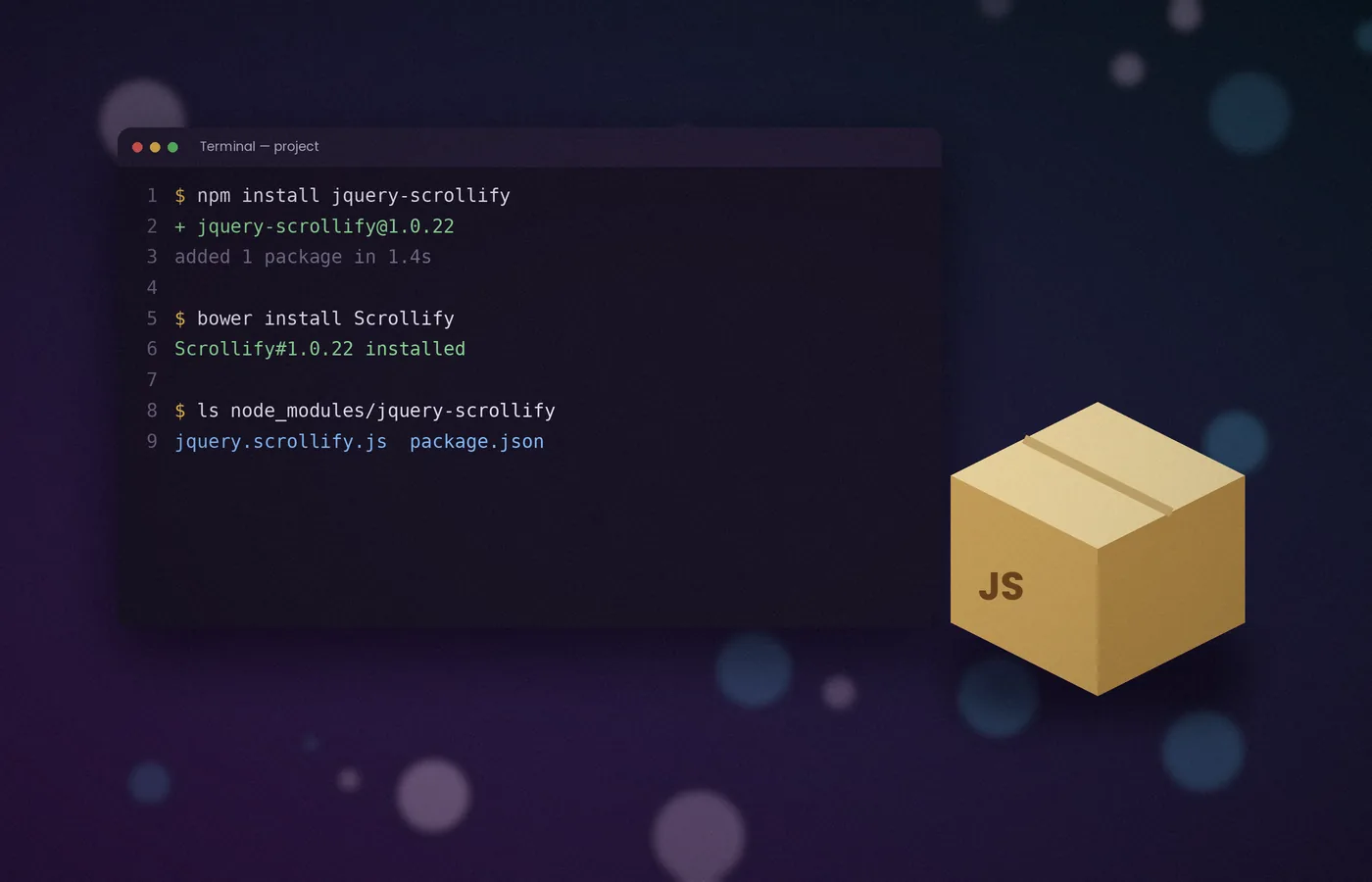
Scrollify is a small jQuery plugin, so installing it takes only a few minutes. The only firm requirement is jQuery 1.7 or later, loaded before the plugin itself.
This article covers the three common routes: npm, Bower and the direct ZIP download. Choose whichever suits the way your project is already organised.
Before you begin
Check which version of jQuery your site uses. The plugin documents jQuery 1.7 as its historical minimum. Use the full build and verify compatibility with the exact version your project ships.
You will also need a page built from several stacked blocks. Each block becomes a Scrollify section, and the plugin snaps between them as the visitor scrolls.
Option 1: install with npm
If your project uses a bundler such as Vite, webpack or Parcel, npm is the tidiest route. The package is published under the name jquery-scrollify.
npm install jquery jquery-scrollifyFor a CommonJS-capable browser bundler, resolve jQuery and the plugin through the same dependency graph. If your toolchain uses ES modules, verify its CommonJS interoperation rather than assuming static import order follows nearby assignments.
// CommonJS-capable browser bundler:
const $ = require("jquery");
require("jquery-scrollify");
The plugin attaches itself to $.scrollify, when the bundler resolves both dependencies correctly.
Option 2: install with Bower
Older front-end projects sometimes still rely on Bower. Scrollify remains available there under the name Scrollify.
bower install ScrollifyBower places the files in bower_components/Scrollify. Reference the script from that folder in your HTML.
Option 3: direct download
For a static site or a quick prototype, the ZIP archive is the simplest choice. It contains the readable source, the licence and the package manifests.
- Download the Scrollify ZIP from the download section.
- Extract the archive and copy
jquery.scrollify.jsinto your scripts folder. - Add the script tag after jQuery, as shown below.
<script src="https://code.jquery.com/jquery-3.7.1.min.js"></script>
<script src="../js/jquery.scrollify.js"></script>
Script order matters. If Scrollify loads before jQuery, the browser reports that jQuery is not defined and nothing snaps.
Loading from a CDN
Public CDNs such as cdnjs also host Scrollify. This avoids hosting the file yourself, though you should pin an exact version so that updates never change behaviour unexpectedly.
Whichever CDN you use, keep a local copy for development. It lets you work offline and read the source when debugging.
Confirming the installation
Open the browser console on your page and type the following:
typeof $.scrollifyA result of "function" means the plugin has loaded. A result of "undefined" usually points to a wrong file path or an incorrect script order.
Where to place the initialisation code
Initialise Scrollify only after the document is ready, so that every section exists when the plugin measures the page.
$(function () {
  $.scrollify({ section: ".panel" });
});
Place this block in your own script file, loaded after the plugin. Keeping configuration separate makes later changes far easier to manage.
Common installation mistakes
- Two copies of jQuery. A second copy loaded later wipes out the plugin. Search your templates for duplicate script tags.
- The slim build of jQuery. Scrollify animates scrolling, and the slim build omits the effects module. Use the full build.
- Deferred scripts out of order. If you add
defer, add it to jQuery, the plugin and your own script together.
Choose a delivery method for the project you have
Installation is a dependency decision before it is a scrolling decision. A small brochure site can keep its JavaScript beside its images and stylesheets, whereas an application with a build process should record the package in its dependency manifest. Neither arrangement makes the scrolling effect inherently smoother. The useful distinction is whether another developer can reproduce the same installation without guessing which files were copied. Before changing anything, identify where jQuery currently enters the page, who maintains the build, and how production assets are published. That short inventory prevents a second library copy from appearing in a shared template later.
Check the downloaded archive before copying files
Open the downloaded archive and inspect its directory structure rather than referencing a filename from memory. Copy the browser plugin into a clearly named vendor directory and retain its licence alongside your project documentation. Keep the readable source available even if your production process creates a minified bundle. When a problem appears, that source lets you compare actual behaviour with an example instead of debugging an opaque compressed file. Avoid copying the entire example website into your public directory: demonstrations may contain unrelated assets, navigation, and scripts that your installation does not need. Document the exact file you selected and its version.
Use deliberate execution order
For traditional script tags, loading order and execution order must agree. Ordinary scripts execute in document order; deferred classic scripts also preserve their relative order after the document has been parsed. Independently asynchronous scripts do not offer that guarantee. A fast plugin download can therefore execute before a slower jQuery download when both use async. Remove that race by choosing one consistent loading strategy for the dependency chain. Your own initialisation file belongs after both dependencies. If a template manager injects scripts automatically, inspect the rendered HTML in the browser rather than relying exclusively on the order shown in the template editor.
Understand bundler imports
A bundler can resolve the package while still leaving you with an unexpected jQuery instance. Modern import declarations are evaluated according to the module dependency graph; placing a window assignment above another static import does not by itself establish the sequence that a browser-global plugin needs. Scrollify includes a CommonJS entry path, so verify how your bundler handles that path before adding global variables. Use a single resolved jQuery dependency and follow your toolchain's documented interoperation method. If you cannot explain which instance receives the plugin, begin with ordinary script tags in a minimal page, then move the verified arrangement into the bundle.
Pin dependencies and keep the lockfile
A version recorded in a package manifest is only part of a reproducible setup. Commit the lockfile that your package manager generates and use the corresponding reproducible installation command in deployment. A fresh build should resolve the same dependency graph that you tested locally. Updating jQuery is a separate change from adding Scrollify: test that upgrade independently, especially on an older site with several plugins. A historical minimum version is not a promise that every future release behaves identically. Treat compatibility as something demonstrated by your page, your selected versions, and your supported browsers rather than by a broad version claim.
Verify the network response as well as the filename
When a script does not load, open the Network panel and reload the page with its log visible. A response can have a successful status while containing the site's HTML error page instead of JavaScript. Check the response body and content type, then compare its request path with the actual deployed location. Nested page routes commonly expose a relative-path mistake that the homepage conceals. Also check filename case: a path that works on a case-insensitive development machine may fail on a case-sensitive server. Resolve those delivery problems before changing Scrollify settings, since configuration cannot repair a missing or incorrect script response.
Create a small acceptance page
Use three sections with short headings, simple background colours, and no additional animation libraries. Start with the default scrolling settings and confirm that the selected class matches exactly three elements. Check the first panel, the middle panel, and the final panel independently. Then use both the wheel and the keyboard, resize the window, and reload a named section link. This page gives you a known baseline. If installation works here but fails in the full design, the dependency is available and the next investigation concerns page structure or another script. Keep the baseline small enough that a colleague can understand it immediately.
Separate installation failures from layout failures
A console result showing that the plugin is a function proves availability, not that the page has usable sections. A selector can match nothing, match nested elements, or include a navigation component accidentally. Check the matched elements directly and inspect their dimensions after initialisation. If the function exists and the selector is correct, investigate layout before reinstalling the package. Repeatedly replacing vendor files obscures the original evidence and may introduce a different version. Record one concrete symptom, such as the final heading being hidden, and change one relevant variable at a time until the cause becomes clear.
Plan for deployment and independent page loads
Test the page by entering its complete address in a fresh tab rather than reaching it only through the homepage. Production servers may use a different base directory, cache policy, or URL structure from your development server. Every dependency must still resolve when the page is loaded directly.
Leave a useful maintenance record
Write down the installed version, delivery method, dependency order, and location of the initialisation code. Include the short sequence used to verify a successful installation so the next maintainer can repeat it after a template change.
Frequently asked questions
Do I need a package manager?
No. A static page can load a locally hosted jQuery file followed by the downloaded Scrollify browser file. A package manager is useful when your project already bundles dependencies, but introducing a complete build pipeline solely for this plugin is unnecessary. Choose the arrangement your team can reproduce and maintain.
Why is the plugin undefined although both scripts appear?
Check execution order, the actual network responses, and whether another jQuery copy loads afterwards. A later copy can replace the object to which Scrollify attached. Also inspect earlier console errors: an exception or blocked request may stop the chain before your initialisation file executes.
Should I use Bower for a new project?
Treat Bower as a route for an existing legacy workflow rather than the default for a new build. For a new project, a direct download or your established package manager generally gives a clearer maintenance path. Keep the installed version explicit and verify the complete page after deployment.
Can I test without an internet connection?
Yes, provided the plugin, jQuery, and every required asset are available locally. Remove reliance on remote fonts or scripts in the test page. An offline baseline is particularly helpful when you need to distinguish a network problem from an initialisation or layout problem.
Conclusion
A reliable Scrollify installation starts with one verified jQuery instance, deliberate script order, and a reproducible delivery method. Confirm the dependency on a minimal page, then test the actual deployed route. Keep versions and setup instructions documented so the installation remains understandable when the project changes.